Under the “Select Sensor” option in the current Data Acquisition Control Area, you can monitor the multimodal perception information of the sensor in real time. It also supports recording the sensor feedback information for later “opening data stream” to conduct review, recap, and analysis.
The software supports connecting multiple sensors simultaneously and enables quick switching between them.
The Device Selection Area displays the names of all sensors. By clicking ,
you can quickly switch from the list of detected sensors to the target sensor, and its collected information will be displayed in the visualization area.
/ Default: When the program is newly launched or the “Default” icon on the left side of the Perception Mode Configuration Area is clicked,
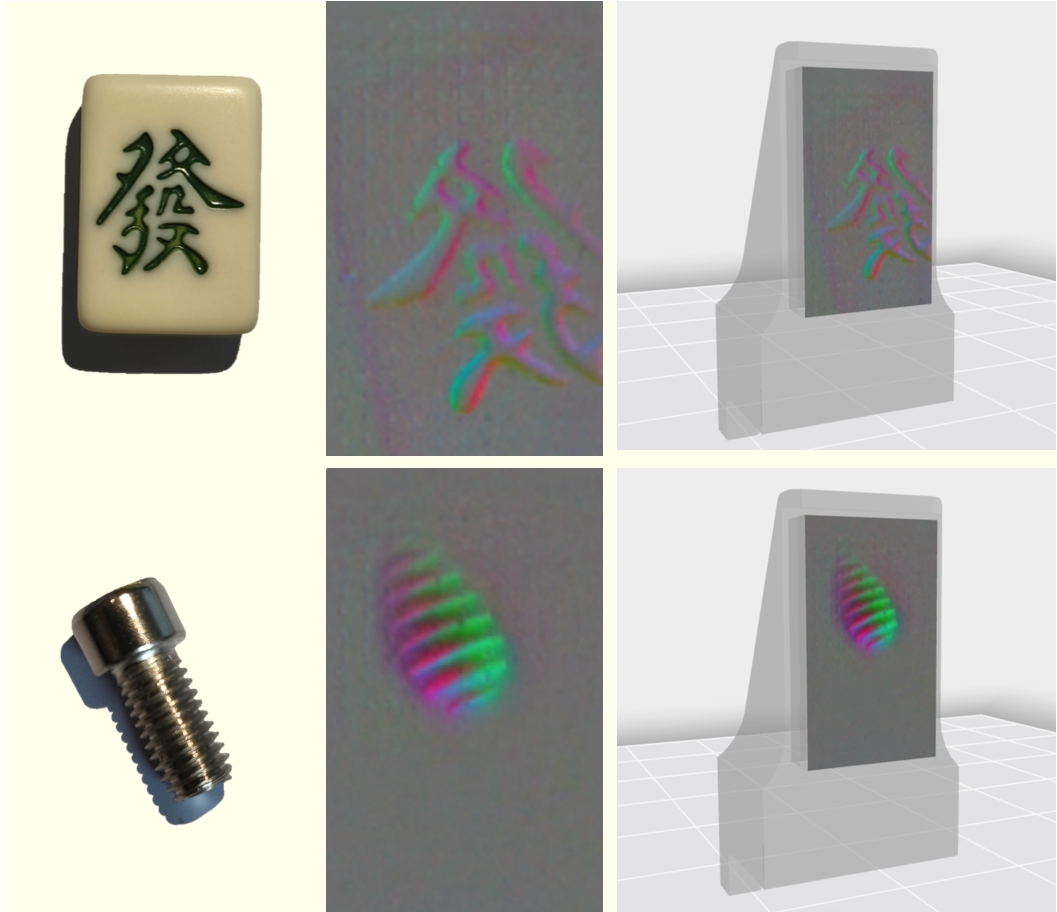
the visualization area will display the sensor’s tactile image information
/ Contact Force: Click the “Contact Force” icon on the left side of the Perception Mode Configuration Area,
and the visualization area will display the contact force reconstruction results and surface deformation field
/ Recording: Click the “Recording” icon on the left side of the Perception Mode Configuration Area,
click the bottom-right corner to select the data stream storage location, then click at the bottom center to start recording, and click to stop recording and save the file to the target path
View switching enables flexible conversion of the tactile and contact force information fed back by the sensor between 2D planar and 3D spatial views. It presents the information in multimodal forms such as tactile images, contact force, and surface deformation field.
When the tactile image information is distorted or sensor data retention occurs, click the at the bottom center under no-load condition.
This allows recalibrating the sensor to refresh the display.
The arrows in the 3D view are the results of contact force reconstruction. The direction of the arrow indicates the direction of the force, and the length of the arrow indicates the magnitude of the force. The curved surface area below the arrow
displays the perception result of the contact deformation field. In the 2D view, only the surface deformation field is displayed due to the limitation of visualization dimensions.
Click “Open Data Stream” in the Data Acquisition Control Area, then click to load the previously recorded data stream file. After loading, the software will cyclically display the information obtained from the data stream file and present the calculation results.
The Sensor Selection Area displays the name of the saved data stream file . The name of the virtual sensor is derived from the data stream file name. After loading the data stream, refer to 3.1 Default Mode and Contact Force Mode for details, but there is no Recording Mode.
For the perception mode configuration, refer to 3.1.2 ( / Recording ). For view switching, refer to 3.1.3.


 ,
you can quickly switch from the list of detected sensors to the target sensor, and its collected information will be displayed in the visualization area.
,
you can quickly switch from the list of detected sensors to the target sensor, and its collected information will be displayed in the visualization area. : Indicates the device is online
 : Indicates the device is offline
 : Indicates a sensor error. Hovering the mouse over it will display the error message (sensor config file failed to load).
 to rescan the sensors.
.png) /
/ .png) Default: When the program is newly launched or the “Default” icon on the left side of the Perception Mode Configuration Area is clicked,
the visualization area will display the sensor’s tactile image information
Default: When the program is newly launched or the “Default” icon on the left side of the Perception Mode Configuration Area is clicked,
the visualization area will display the sensor’s tactile image information.png) /
/ .png) Contact Force: Click the “Contact Force” icon on the left side of the Perception Mode Configuration Area,
and the visualization area will display the contact force reconstruction results and surface deformation field
Contact Force: Click the “Contact Force” icon on the left side of the Perception Mode Configuration Area,
and the visualization area will display the contact force reconstruction results and surface deformation field.png) /
/ .png) Recording: Click the “Recording” icon on the left side of the Perception Mode Configuration Area,
click the bottom-right corner to select the data stream storage location, then click
Recording: Click the “Recording” icon on the left side of the Perception Mode Configuration Area,
click the bottom-right corner to select the data stream storage location, then click  at the bottom center to start recording, and click
  to stop recording and save the file to the target path
 at the bottom center under no-load condition.
This allows recalibrating the sensor to refresh the display.
at the bottom center under no-load condition.
This allows recalibrating the sensor to refresh the display.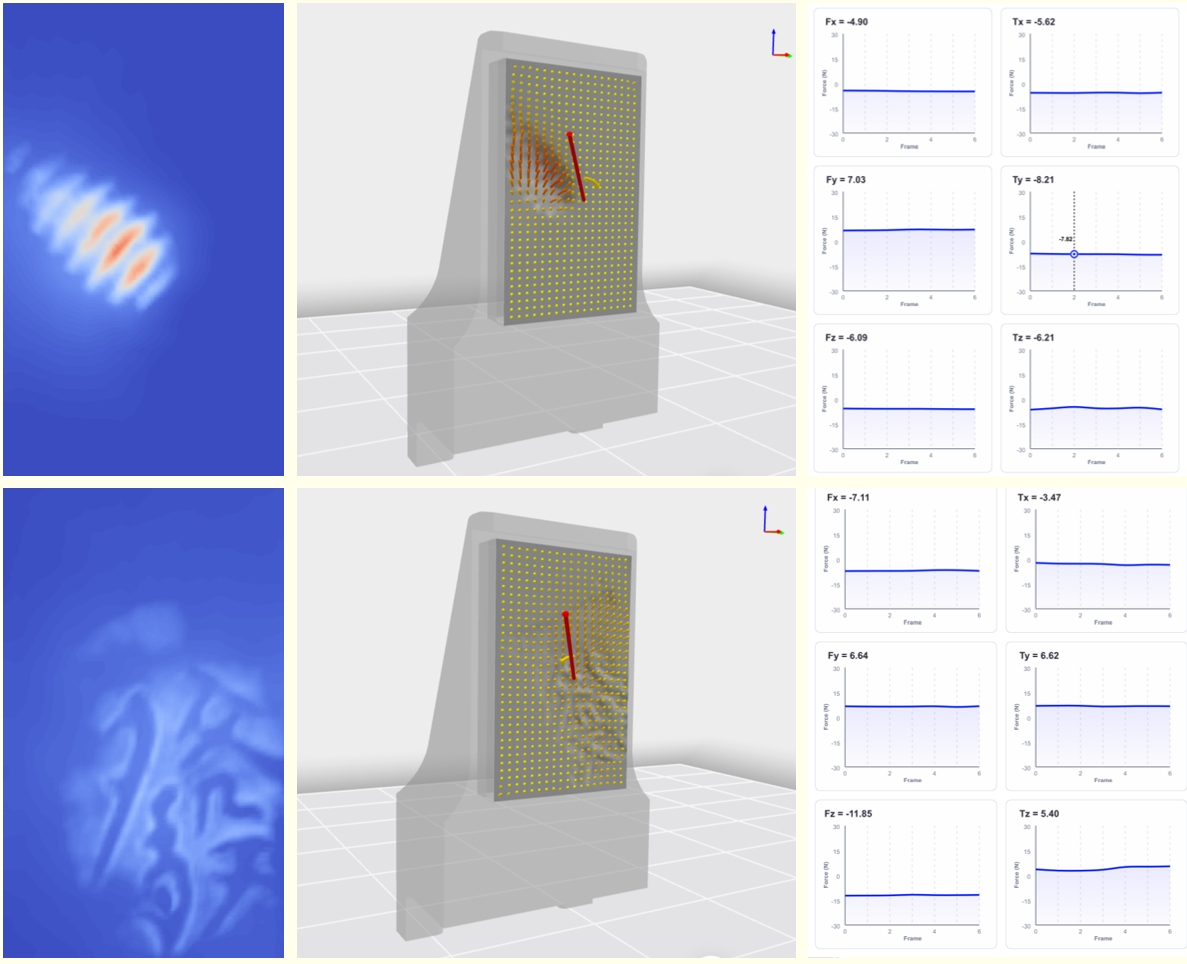
 to load the previously recorded data stream file. After loading, the software will cyclically display the information obtained from the data stream file and present the calculation results.
The Sensor Selection Area displays the name of the saved data stream file
to load the previously recorded data stream file. After loading, the software will cyclically display the information obtained from the data stream file and present the calculation results.
The Sensor Selection Area displays the name of the saved data stream file  . The name of the virtual sensor is derived from the data stream file name. After loading the data stream, refer to 3.1 Default Mode and Contact Force Mode for details, but there is no Recording Mode.
For the perception mode configuration, refer to 3.1.2 (
. The name of the virtual sensor is derived from the data stream file name. After loading the data stream, refer to 3.1 Default Mode and Contact Force Mode for details, but there is no Recording Mode.
For the perception mode configuration, refer to 3.1.2 ( 
 Settings: Theme appearance and language type in the settings interface
 Help: Open help documentation and FAQ (Frequently Asked Questions)
 About: Display application information
 Minimize: Minimize the application to the background
 Maximize: Maximize the application to occupy the entire screen
 Exit: Close the current application